This guide is also available as a pdf download at the bottom of the page
FURTHER ASSITANCE AND GUIDANCE
For questions or queries regarding technical issues with the courses, modules and content, or any queries about your cabin crew role should be directed to the easyJet crew training team using the email CBTrecurrenttraining@easyjet.com
For any queries regarding technical issues with the easyJet Learning site, please follow the below instructions.
Knowledge Base
The knowledge base may have the answers you require. To access frequently covered topics, begin typing in the search bar on screen.
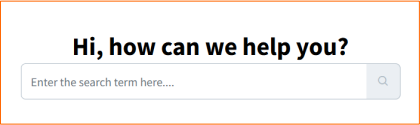
Additionally, you can click select ‘Browse Articles’ to view all available guides and useful information.
Creating a support ticket
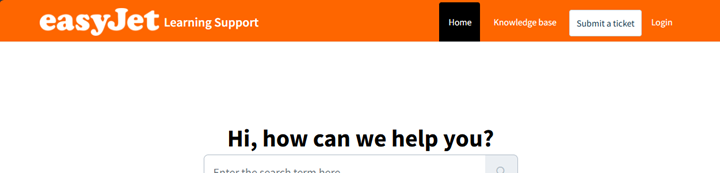
- If you require further assistance, you can raise a ticket with the support team. Follow the instructions below to raise a ticket. 1. Select the link on the site or go to https://easyjetsupport.gpstrategies.com/support/home
- From the navigation bar at the top, or using the buttons on the page, select “Submit a ticket” to open the ticket submission form.
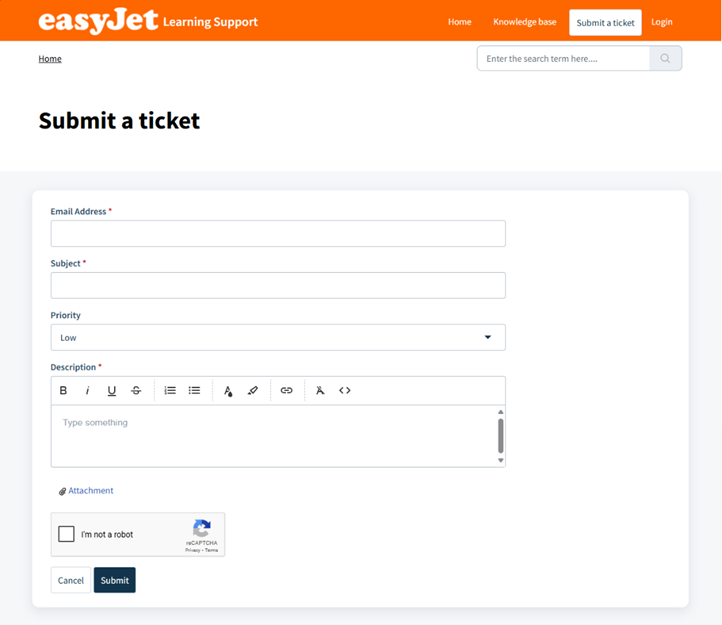
- Enter your email address (this is the address that all responses and ticket updates will be sent to). easyJetLearning User Support Information v1.0 August 2025
- Enter a subject. This should be description of the support request.
- Select a priority level. If you are unsure, leave it at the default value. The support agent responding to the ticket will evaluate the priority and update this if needed.
- Enter a description of the issue. If you are requesting information or advice, tell us what you need. If you are reporting an issue or a bug, you should include as much detail as you can:
- Identify the location the issue was experienced, for example, the name of the page you are on
- Describe the issue seen and what you were doing immediately before the issue appeared (include any error codes if they were seen).
- If it would be useful to provide a screenshot to illustrate the issue, this can be attached towards the bottom of the form.
- Complete the Captcha confirmation by selecting the ‘I’m not a robot’ box. 8. Select the Submit button at the bottom of the form. You will receive an email confirmation that the ticket has been created.
Was this article helpful?
That’s Great!
Thank you for your feedback
Sorry! We couldn't be helpful
Thank you for your feedback
Feedback sent
We appreciate your effort and will try to fix the article